Nearly 4 million websites worldwide are currently using the META pixel (formerly known as the Facebook pixel).
When you think about it, you’re probably wondering how this tiny pixel got so popular.
The JavaScript code, known as a “meta pixel,” is added to your website in order to track visitor activities. It is an analytic tool that help to measure and enhance the success of marketing activities.
How does the META Pixel work?
The pixel “fires” when a user does one of the actions you asked it to track on your website. These actions are known as “conversions” and the pixel interprets them as “events.” Page Views, Add-to-Cart, Purchase, Scroll Depth, Time on Page, and other events are examples of these events.
The pixel records the URLs, domains, and devices that the visitors use. Both the Facebook Analytics Dashboard and the Facebook Ads Manager allow you to examine all of your recorded conversions.
STEP 1: How to create META Pixel
- Go to Facebook Events Manager
- Click Connect Data Sources on the left side of the menu
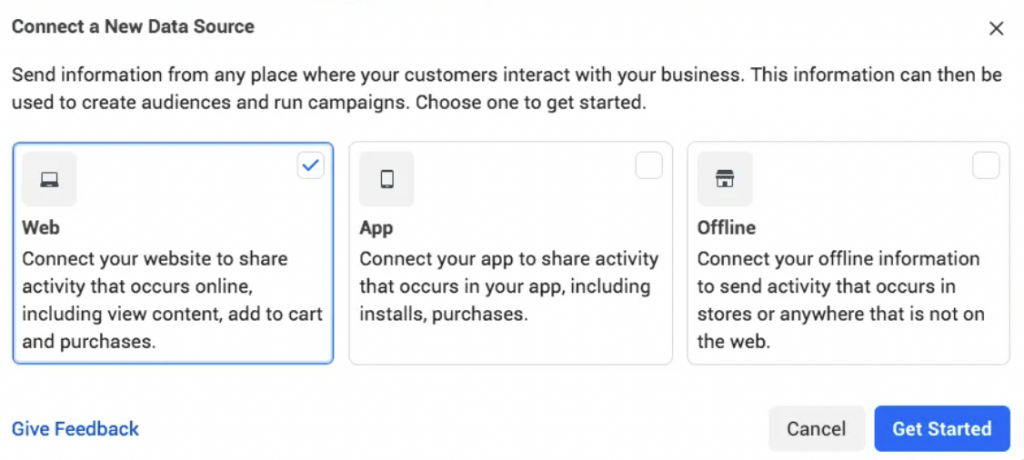
- Select “Web” and click “Get started”
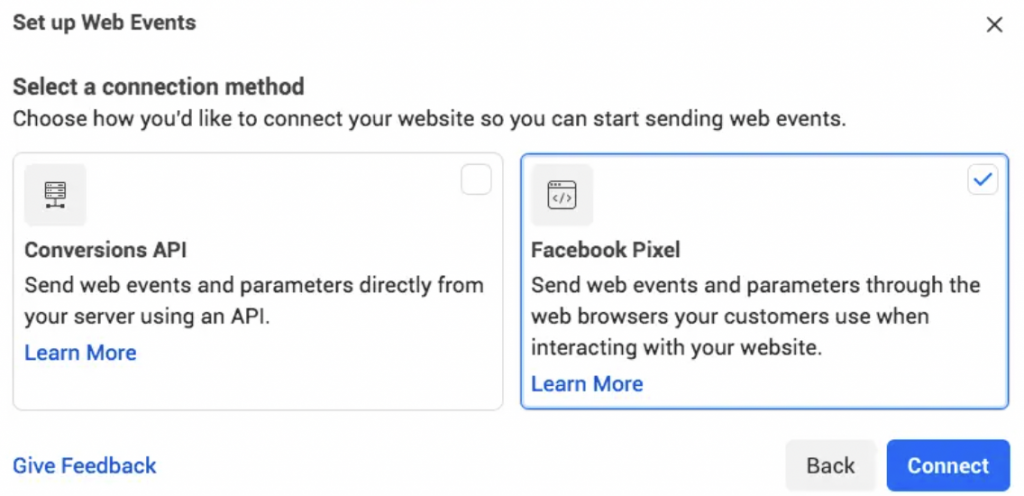
- Choose “Facebook Pixel”
- Click “Continue” after reading about how the pixel functions
- Name your pixel something relevant
- Enter the URL of your website to check for simple setup alternatives, click “Continue”
STEP 2: Install the META Pixel on your website
It’s time to put up the Meta pixel on your website when your new pixel has been created.
- Go to the Facebook Events Manager
- Choose your pixel
- Click “Continue Pixel Setup”
STEP 3: Installation
At this point, you have three options for moving forward: manual installation, partner integration, or sending the instructions to your website administrator.
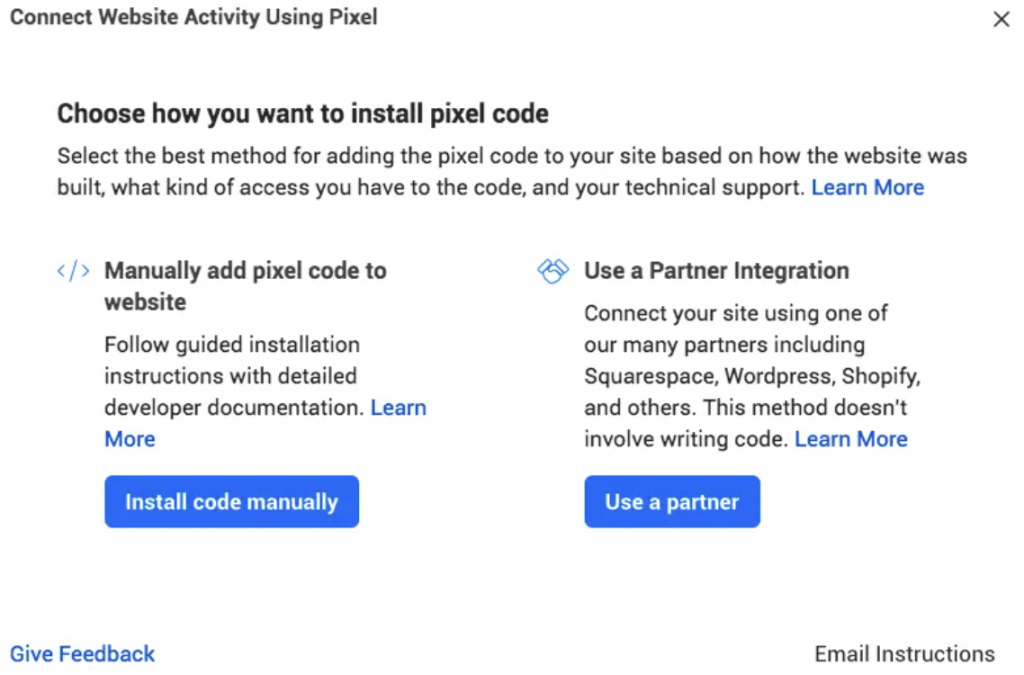
Manual integration
- Select “Install Code Manually”
- Copy the pixel base code
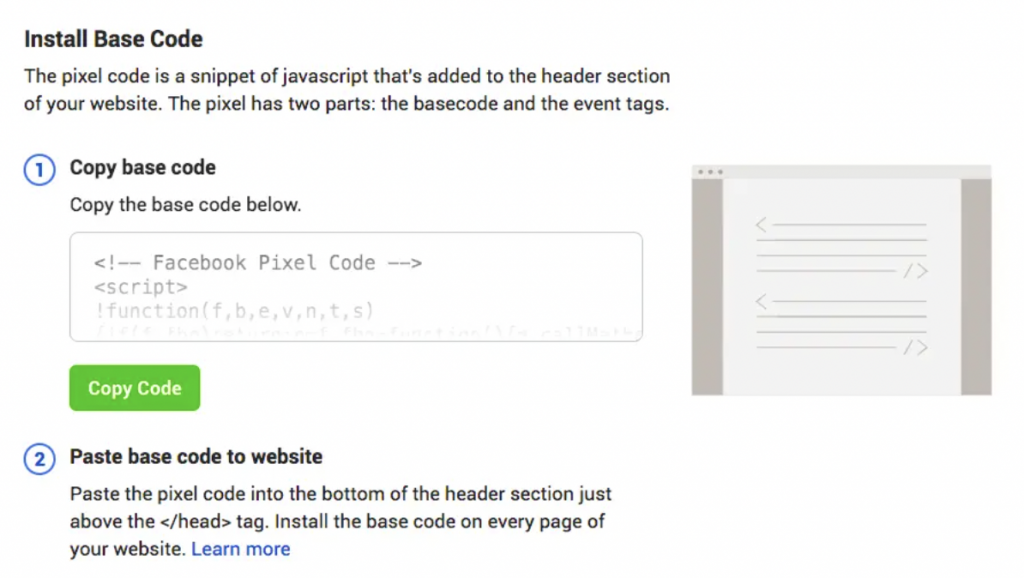
- Locate the header template in your CMS or web platform or find the header on your website.
- Just above the closing head tag at the bottom of the header section, paste the base code and click “Continue”
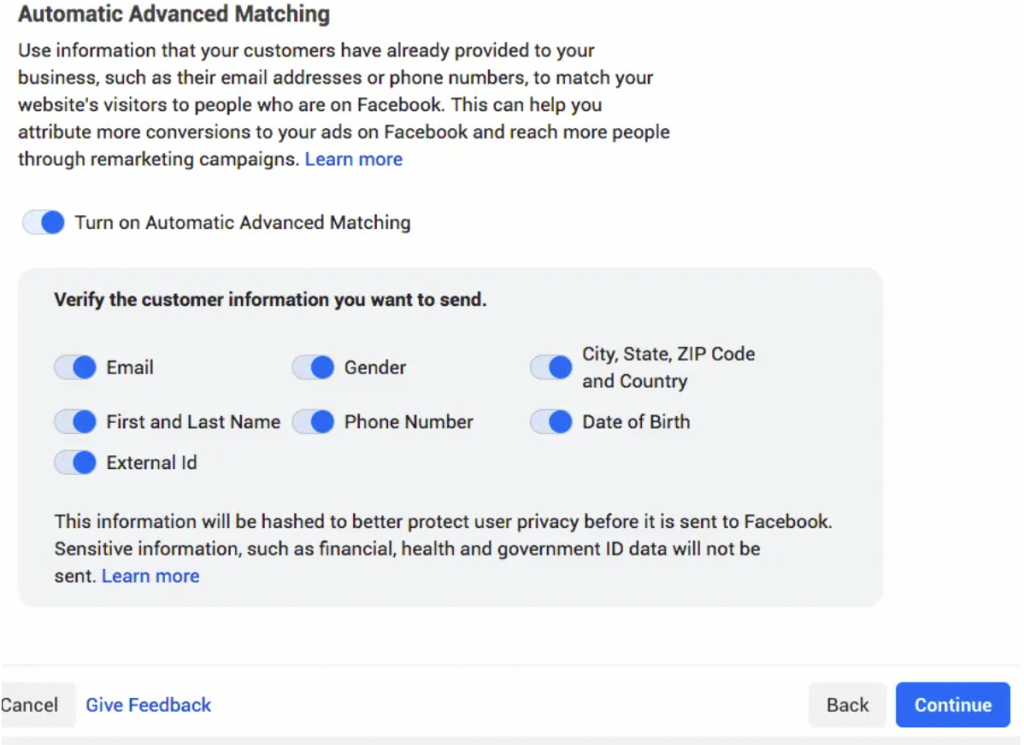
- You can now activate “Automatic Advanced Matching” and verify the customer information you want to send. Then click “Continue.”
- Select your Facebook pixel ID and then click Settings and scroll down to Open Event Setup Tool.
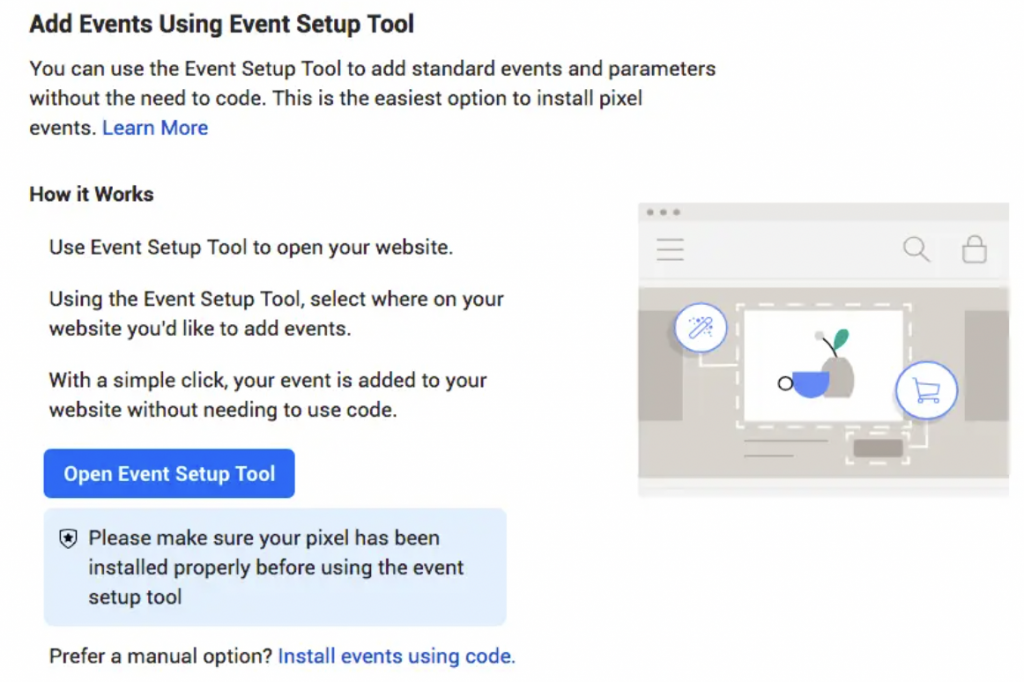
- Enter your URL and press the Enter key.
- Facebook will provide multiple suggestions for events. Then choose and click “Finish Setup.”
If you are using one of Facebook’s integration partners, such as Shopify, Magento, WooCommerce, Square Space or WordPress, then choose “Use a Partner Integration.” You may connect your META Pixel using this without knowing any programming.
If you collaborate with a developer or another person who can assist you with editing the website’s source code, click “Email Instructions” to send your developer all the information they need to install the pixel.
The META pixel has a lot of possibilities that can increase its efficiency for you and your organization, but there is still plenty to learn about it.
If you run into trouble, or require assistance, book a 45 minute troubleshooting session with a team member.