Hackers are taking over Facebook Business Pages and Ad Accounts, uploading false information, stealing credit cards, and charging huge advertising bills. How are they carrying this out?
Facebook users who have admin access to business accounts are being targeted by hackers on their personal accounts. Once inside the business account, they can reset the password, kick out the other admins, and create campaigns. Furthermore, Facebook has a very poor track record of assisting victims in taking back their accounts and pages.
You must take precautions to secure your account if you use Facebook and Instagram for free or paid marketing.
Follow these steps to secure your Facebook account:
- Create a Strong Password
Your Facebook password needs to be challenging to crack but simple for you to remember.
- Keep your password free of common words, your name, pet names, or your date of birth.
- Consider a lengthy phrase or series of words that you can remember but that no one else would ever guess as a way to create a secure password.
- Your passwords should always contain numbers, a combination of upper- and lowercase characters, and symbols. Aim for 10 characters or more.
- For example, “I’m going to London for my vacation next year” could be iGTLfmvnY23#
- Never use your Facebook password for any other website or app.
- Change your password every six months.
Two-factor Authentication
When you log in from an unidentified browser, two-factor authentication requires a security code, adding an extra layer of security to your account. You have the option of using an authentication software like Google Authenticator or an SMS text message to get this code.
- Log in to business.facebook.com
- At the bottom of the left menu, locate Settings or the gear symbol.
- A new page will open with a left-side submenu that has been added. You need to find More Business Settings

- You will be taken to a new tab with a different layout and menu options on the left. The Security Center with the lock icon can be found by scrolling down the menu.
- Two choices, Two-Factor Authentication and Add Another Admin, are available here.
- Select “Who is required to turn on two-factor authentication” from the drop-down menu.
- Choose Everyone to make this security feature mandatory for all types of account access.
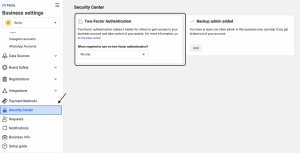
Facebook will send an email to you and any additional admins, staff members, or partners asking them to modify the security settings on their individual accounts. To get started, they can either go to their Facebook page and complete these steps through their Settings, or they can click the link in the email. They won’t be able to access the Business Suite, change the page, run advertisements, or do anything else if they don’t set up two-factor authentication.
Assign a Backup Admin
A trusted business partner, co-worker, member of your family, or friend should serve as your business account’s backup administrator. They don’t even have to be associated with your business or be active in the account. As long as they have your trust, you can choose whoever you choose (and have a Facebook account).
- Use the blue Add button located in the Add Another Admin box while we are still in the Security Center.
- Put the person’s email address here that you want to add.
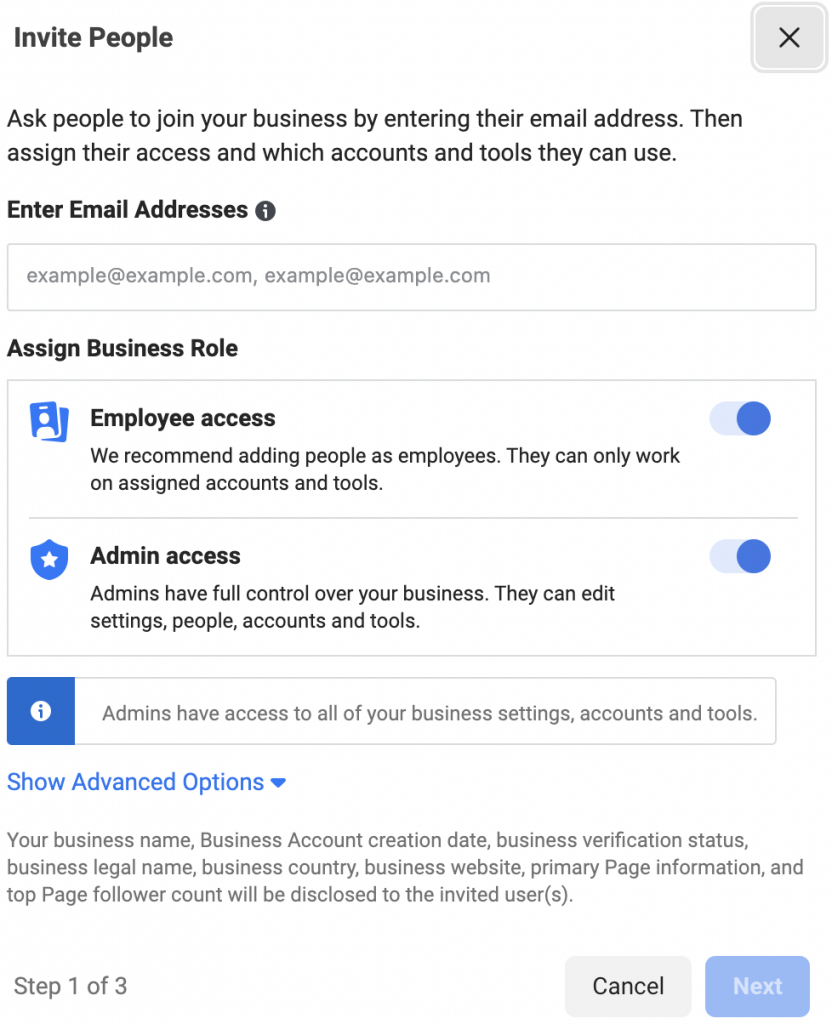
- Click Next after making sure the Admin Access button is turned on.
- You can assign them assets from your company in the following pop-up.
- Click Invite when you’re done and satisfied. They will receive an email invitation, and they won’t be included until they accept it and set up two-factor authentication.
To stay one step ahead of hackers, it’s critical to stay up to date on security measures.
If you run into trouble, or require assistance, book a 45 minute troubleshooting appointment with a team member.